Laravel Development Company in India | Custom Laravel Web Development Services
Laravel Development Company in India | Custom Laravel Web Development Services
Introduction
In today’s competitive digital world, businesses need secure, scalable, and high-performance web applications to stay ahead. Whether you’re building a startup MVP, an enterprise portal, a CRM, an ERP system, an eCommerce platform, or a SaaS application, choosing the right technology stack is crucial. Laravel has become one of the most popular PHP frameworks because it enables developers to build modern applications faster while maintaining high security and excellent performance.
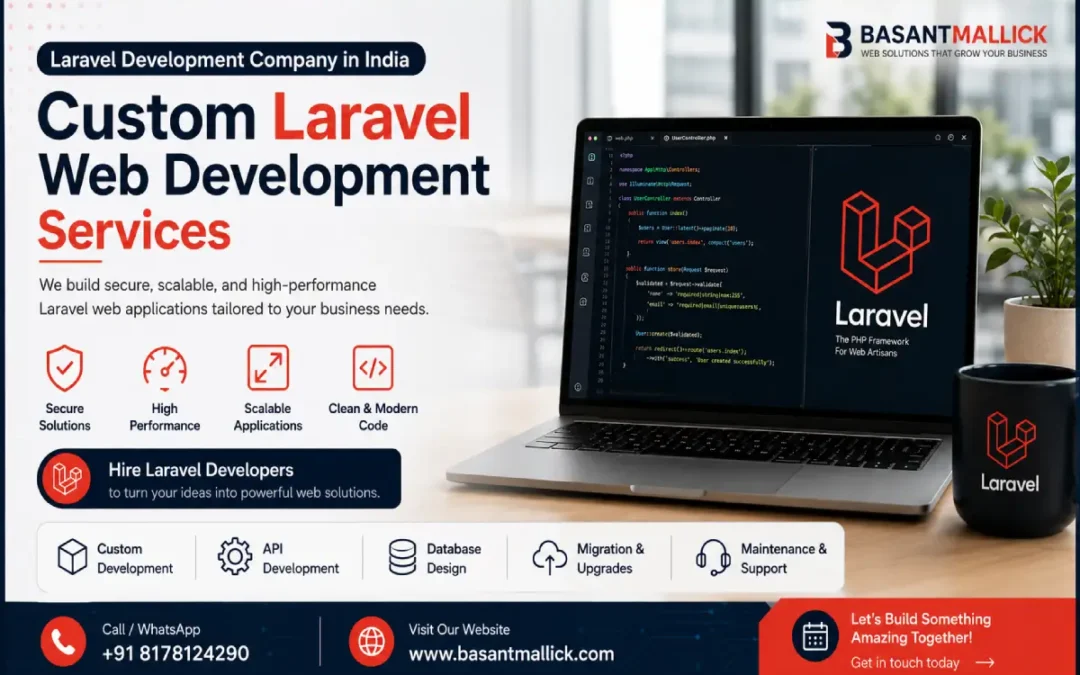
At Basant Mallick, we provide Laravel Development Services tailored to your business goals. As an experienced Laravel Development Company, we specialize in Custom Laravel Development, Laravel Web Development, Laravel API Development, Laravel Migration, Laravel Maintenance, and complete Laravel Application Development.
If you’re looking to Hire Laravel Developer for your next project, you’re in the right place.
Why Laravel is the Best PHP Framework ?
Laravel has transformed modern PHP development by providing a clean architecture, reusable components, and powerful built-in tools that significantly reduce development time.
Businesses prefer Laravel because it offers:
- Elegant MVC Architecture
- Built-in Authentication
- Secure Authorization
- Blade Templating Engine
- Eloquent ORM
- Database Migrations
- Queue Management
- Task Scheduling
- Caching
- REST API Support
- Third-party Integrations
- Excellent Performance
Unlike traditional PHP development, Laravel provides organized code architecture, making future upgrades easier and reducing maintenance costs.
As a professional Laravel Development Company, we use Laravel’s latest features to deliver scalable business applications.
Benefits of Laravel
Choosing Laravel means investing in a future-ready framework that supports business growth.
1. High Security
Laravel protects your application against:
- SQL Injection
- Cross-Site Scripting (XSS)
- CSRF Attacks
- Authentication Vulnerabilities
Our Laravel Development Services prioritize security from the beginning.
2. Faster Development
Laravel includes many built-in features, allowing our Laravel Developer team to develop applications faster without compromising quality.
3. Scalable Architecture
Whether your application serves 100 users or 1 million users, Laravel Application Development provides the flexibility to scale efficiently.
4. Better Performance
Using caching, queues, optimized database queries, and Redis integration, our Laravel Web Development projects deliver exceptional speed.
5. Easy Maintenance
Well-structured code makes future updates simpler, reducing the long-term cost of Laravel Maintenance.
Laravel Development Services We Offer :
As a trusted Laravel Development Company, we offer end-to-end Laravel solutions for startups, SMEs, and enterprises.
Custom Laravel Development
Every business has unique requirements. Our Custom Laravel Development services include:
- CRM Development
- ERP Solutions
- SaaS Platforms
- Marketplace Development
- Custom Dashboards
- Business Automation Systems
- HR Management Systems
We build scalable applications designed specifically for your workflow.
Laravel Web Development
Our Laravel Web Development services include:
- Business Websites
- Corporate Portals
- Enterprise Applications
- Admin Panels
- Customer Dashboards
- Booking Systems
- Membership Platforms
Every website is responsive, secure, SEO-friendly, and optimized for performance.
Laravel Application Development
Our Laravel Application Development expertise covers:
- Multi-vendor Platforms
- Learning Management Systems
- Healthcare Applications
- Logistics Software
- Real Estate Portals
- Finance Applications
- Government Portals
We follow coding standards that ensure maintainability and future scalability.
Hire Laravel Developer
Need dedicated resources?
You can Hire Laravel Developer from Basant Mallick for:
- Full-time Projects
- Part-time Support
- Fixed Cost Development
- Hourly Development
- Existing Project Enhancements
- Bug Fixing
- Performance Optimization
Our developers have experience working with Laravel, MySQL, PostgreSQL, REST APIs, React, Vue.js, and third-party integrations.
Laravel API Development
Modern businesses rely on APIs to connect web applications, mobile apps, and third-party services.
Our Laravel API Development services include:
- REST API Development
- Secure Authentication APIs
- Payment Gateway APIs
- SMS Integration
- WhatsApp API
- Email APIs
- Social Login
- OAuth Integration
- CRM Integration
- ERP Integration
Our Laravel API Development follows REST standards, ensuring secure, scalable, and well-documented APIs.
Whether you need mobile backend APIs or enterprise integrations, we build APIs that are reliable and easy to maintain.
Laravel Migration
Still running applications on Core PHP, CodeIgniter, CakePHP, or older Laravel versions?
Our Laravel Migration services help businesses upgrade without losing valuable data.
We provide:
- PHP to Laravel Migration
- CodeIgniter to Laravel Migration
- CakePHP to Laravel Migration
- Laravel Version Upgrade
- Database Migration
- Legacy Application Modernization
Every Laravel Migration project includes database validation, testing, optimization, and post-migration support.
Laravel Maintenance
Launching your application is only the beginning.
Our Laravel Maintenance services keep your application secure, updated, and running smoothly.
Our maintenance plans include:
- Security Updates
- Bug Fixes
- Version Upgrades
- Performance Optimization
- Server Monitoring
- Database Optimization
- Backup Management
- Feature Enhancements
- Error Resolution
Regular Laravel Maintenance improves application stability and minimizes downtime.
Why Choose Basant Mallick ?
Choosing the right Laravel Development Company can make a significant difference in your project’s success.
Here’s why clients choose us:
✔ Experienced Laravel Developers
We have years of experience delivering enterprise-grade Laravel solutions.
✔ Custom Solutions
Every Custom Laravel Development project is built according to business requirements rather than using generic templates.
✔ Performance Focused
Our Laravel Web Development process includes performance optimization from day one.
✔ API Expertise
We specialize in Laravel API Development for mobile apps, web platforms, and third-party integrations.
✔ Migration Support
Our Laravel Migration process minimizes downtime and ensures smooth transitions from legacy systems.
✔ Long-term Support
We offer flexible Laravel Maintenance packages to keep your application secure and up to date.
✔ Transparent Communication
From planning to deployment, you’ll receive regular updates and clear timelines.
Whether you’re a startup, agency, or enterprise, you can confidently Hire Laravel Developer from Basant Mallick for reliable and scalable solutions.
Frequently Asked Questions
Why should I choose Laravel for my project?
Laravel offers excellent security, scalability, rapid development, and long-term maintainability, making it one of the best PHP frameworks available.
Do you build custom Laravel applications?
Yes. Our Custom Laravel Development services are tailored to your unique business processes and requirements.
Can you upgrade older Laravel applications?
Absolutely. Our Laravel Migration services include version upgrades, database migration, and legacy modernization.
Do you provide API development?
Yes. We provide complete Laravel API Development services for web applications, mobile apps, payment gateways, and third-party integrations.
Do you offer post-launch support?
Yes. Our Laravel Maintenance plans include bug fixes, security updates, monitoring, and performance optimization.
Can I hire a dedicated Laravel developer?
Yes. You can Hire Laravel Developer on monthly, or project basis depending on your requirements.
Conclusion
Laravel continues to be one of the most powerful PHP frameworks for building secure, scalable, and high-performance web applications. Whether you need Laravel Web Development, Laravel Application Development, Custom Laravel Development, Laravel API Development, Laravel Migration, or ongoing Laravel Maintenance, partnering with an experienced Laravel Development Company ensures your project is built for long-term success.
At Basant Mallick, we combine technical expertise, industry best practices, and a client-focused approach to deliver reliable Laravel solutions that help businesses grow.
If you’re planning your next web application or looking to modernize an existing system, Hire Laravel Developer from Basant Mallick and let’s build a secure, scalable, and future-ready solution together.
Related Services
- WordPress Website Development
- React JS Development
- PHP Development Services
- API Development Services
- Website Maintenance Services
- Full Stack Development
Ready to Build Your Next Laravel Project?
Whether you need a brand-new application, API integration, migration from an existing system, or long-term maintenance, we’re here to help.
📞 Call / WhatsApp: +91 8178124290
🌐 Website: www.basantmallick.com
Contact us today for a free consultation and discover how our Laravel expertise can turn your ideas into powerful, scalable web applications.